TreesOfCloud |
 |
TreesOfCloud is a site that allows you to manage your shopping list, vocally and tactually, on your smartphone.
More generally, this free website of Neurolad allows you to manage all kind of lists collapsible (shopping, tasks, notes, reflexes...) online with the ability to use the voice to update these lists.
TreesOfCloud can really make your everyday life easier.
+ What is it for?
Mainly, to save time but also to stop losing information, by allowing you to enter pieces of information and to organize them quickly on your smartphone.
Practically, here are some very concrete use cases of TreesOfCloud :
- You will be able to create tree-structured task lists, i.e. with tasks that can contain sub-tasks which themselves can contain sub-tasks, etc, ...
- At the office, from your desktop computer, you will be able to update your notes and see the result automatically on your smartphone.
- At home, thanks to your Alexa device, you will be able to add in your todolist, within 30 seconds, without a pen and without glasses, the task you have just thought about.
- At your customer's, you will be able to quickly note the new order he has just placed with you.
- In your car (parked of course
 ), you will be able to send within 10 seconds your shopping list to your spouse, without risking to forget and much faster than by typing a sms.
- In the supermarket, you will no longer curse the "post-it" you have forgotten on the fridge...
- In your bed, before falling asleep, you will be able to quickly store the summary of your day in your list of reports.
- You will also be able to define a list of reflexes for the Telick skill.
- In the street, you will be able, without stopping walking, to add to your shopping list the new ice cream whose advertisement you have just seen.
+ The advantages of TreesOfCloud
Of course, some applications can already take notes from your smartphone and store them online. But TreesOfCloud ... is different
- You can create trees, i.e. lists with several levels.
- You do not have to download specific applications (except for the vocal part) because TreesOfCloud is a site compatible with all smartphones.
- You can update your lists vocally, via Telick, our Alexa skill.
- Your lists are stored in the cloud (which means that you can update your lists from any machine (tablet, computer, ...)).
- You can ask for the encryption of your data before it is sent on the net (client-side encryption).
- You can share items of your lists with one of your contacts Neurolad.
- You can define lists of whatever you want... (tasks, notes, ... and not only shopping).
- The site of TreesOfCloud has been designed to be simple and quick to use on smartphones.
- +
The use of TreesOfCloud allows to acquire shares of the Neurolad.
- This is the case, among others, when you register, when you send a voice request or when you add items to your personal lists with TreesOfCloud.
- Neurolad reserves the right to cancel some donations of shares if it turns out they are the result of an "artificial" (requests without meaning, use of scripts, ...).
- The users can consult the total amount of their participation in their Neurolad. However, this amount is indicative and becomes definitive only after validation by the direction of Neurolad.
+ How to use it ?
- +
Registering
- To use TreesOfCloud, you must be registered on Neurolad
- You just have to register with this link.
You will then receive a link via text message and a password allowing you to access TreesOfCloud
- +
Access to the interface
- Once registered, you can access TreesOfCloud by going to http://www.neurolad.com/treesofcloud.php
- At the first use, you will have to enter your mobile phone number as well as your Neurolad
- +
Use of the interface
- The use of TreesOfCloud is intuitive. Here are nevertheless some details about the features of the site
- +
Addition of item
Use the 'Add' button after having typed the contents of the item to add in the text box. To add an item under another item, select the father item before validating.
In the case of the addition of a new alarm, the content must be of a particular form:
date time text media
(visit the site of Neurolad for more details) - +
Suppression of items
Use the 'Delete' button after having selected one or more items - +
Copy/Cut/Paste of items
3 buttons allow you to copy-paste or to cut-paste items. In order to paste copied items under another item, you must select it before clicking on the Paste button.
This feature is only available with the Pulse formula. - +
Edition of items
Use the 'Edit' button after having selected one or more items - +
Encryption of items
You can request that the items be encrypted on the client side (i.e. on the browser), that is before being sent to the server. In this way, you are guaranteed that nobody can decrypt your data on the server side. To apply this encryption, go through the Options screen (click on the Options button at the bottom of page). You can choose to enable encryption systematically, to activate it case by case or to disable it systematically.
If you choose to encrypt items, you will be asked for a password, different from the one you use to connect to Neurolad. This client password must be treasured. In case of loss, your data could not be recovered.
In the case-by-case encryption, the encryption request is done by checking the checkbox next to the 'lock' icon ( ).
The encryption method used is AES.
This feature is only available with the Pulse formula.
- + Sending of items
You can send one or more items of one of your lists to the recipient of your choice by text message, email or copy in their own list.- + Addition of contacts
create a shortcutIn order to ease the sending of items, you can pre-register contacts in your client space Neurolad. By doing this, you won't have to re-enter the phone number or the email address of your contacts each time you want to send them some of your items.- + Search of item
Use the 'Search' button after having entered the text to search in the text box.- + Change of category
Select the category you want to activate in the drop down list at the top of the page.- + Addition of a category
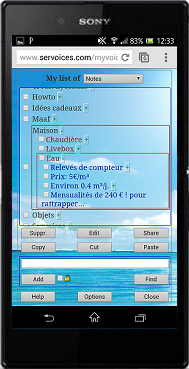
You can define your own category (or type of list). To do this, you must first select the category called "Category" and add a new item in this category. For instance, to create a list of quotes for example, you must add an item entitled 'Quote' in your list of categories. You can delete these personal categories later.- + Screenshot
- + Sending of vocal requests
- +
To send requests vocally, you must use the Telick skill via an Alexa connected speaker:
- To be able to use TreesOfCloud efficiently from Alexa, you must perform the account linking between Alexa and Neurolad.
- To achieve this, you must install the Alexa application on your smartphone, launch it, go to the home screen of the application and click on the connection link between the skill of Monsieur Telick and Alexa. You will then be redirected to a Neurolad form where you will have to enter your Neurolad credentials (email and password).
- After performing this operation, you will be identified when you chat with Mr. Telick's skill via Alexa and the items you'll add vocally will appear in your TreesOfCloud lists.
- To open the skill of Monsieur Telick, just say "Alexa ouvre mon ami virtuel"
- To create a new item in your shopping list, say "Mon ami, nouvelle course".
- You can add a new shopping item vocally in one step, before opening Mr. Telick's skill by saying for example: "Alexa demande à mon ami virtuel mon ami nouvelle course Riz Basmati".
- Each query should begin with the following two words: "Mon ami". For example, you might say, "mon ami nouvelle course Riz basmati".
- You can set new reflexes by saying "mon ami Nouveau Réflexe". Once you have specified the trigger and the corresponding response, each time you say the trigger (preceded by "mon ami"), Telick will say the response you specified.
- You can also create or delete items from other categories by voice, visible in the first drop-down list of TreesOfCloud.
- + Examples of vocal requests
- New shopping item: eggs, milk, wheat, butter
- New task: Send an estimate to SudInfo
- New note: The door code of the Peter's building is A41981
- New alarm: Monday 7h15 pm: Appointment with John at Picadilly Circus by 8pm.
- New alarm: 15/6/12 19h: send my declaration of taxes (by email).
- New report: had lunch with the CTO of SudInfo
- New category: Quote
- New quote: Beauty will save the world
- Find note: Peter's building
+ Some little knacks...
- +
Create a shortcut on the Home screen of your smartphone to quickly access your shopping list.
- Open Google Chrome
- Go to www.neurolad.com/courses.php
- Tap the 3 dots (⋮) in the top right corner
- Select 'Add to the Home screen'
- Change the name of the shortcut if you want
- Tap on Add
- +
Also create shortcuts on the Home screen to quickly access the following sites...
- neurolad.com/treesofcloud.php: Your lists
- www.neurolad.com : The site of Neurolad
- neurolad.com/telick_identification.php : The request form for Telick
- Connect to the site of Neurolad from your computer, to more comfortably manage your contacts Neurolad.
- +
Encryption utility
- We offer you an encryption page using AES to enable you to encrypt your data locally in case you do not want to use the built-in encryption of TreesOfCloud.
- This page uses JavaScript to perform the operations of encryption and decryption and does not send any data on the net.
- The advantage of this page is that it provides a platform-independent and transparent tool to encrypt your data, without you having to depend on the site hosting them. We advise you to copy this page locally to use it.
+ Contact us
If you have a question or a comment about TreesOfCloud or about the services of Neurolad in general, you can contact us at the following address:
Unfold the above sections to have more details.
- + Sending of items